
Registering a New User
Registering as a new user in Get My isn't difficult. Once you have the application up and running, navigate to the application URL in your favorite browser. If you are on a laptop, desktop, or tablet, you'll likely see a 'Log In' option in the upper right corner.
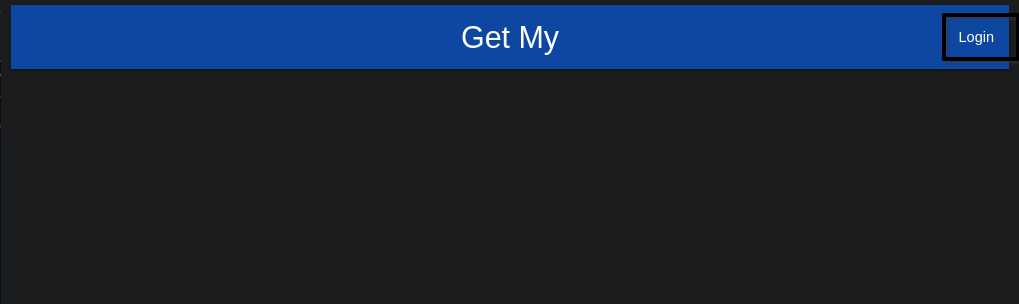
If you are on mobile, you'll see a hamburger menu icon in the upper left corner.

You can touch the hamburger menu to expand the left side panel on mobile. Here you'll find the 'Login' option. Touch that, and then you'll be presented with the login form. On desktop you can click the 'Login' option, and you'll be presented with the login form.
At the bottom left of the login form, you'll see a 'Register' option if the system administrator has left registration enabled.
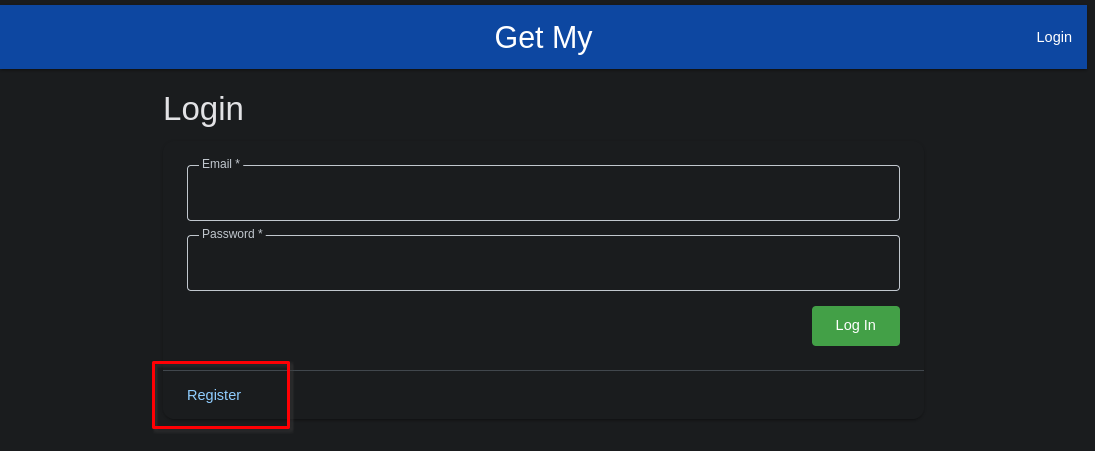
If there is no 'Register' option at the bottom left of the login screen, the system administrator has disabled registration through the application management tools. You'll have to speak to your system administrator about getting this enabled.
Assuming you have registration enabled, you can click / touch that option, and you'll be presented with the registration form.
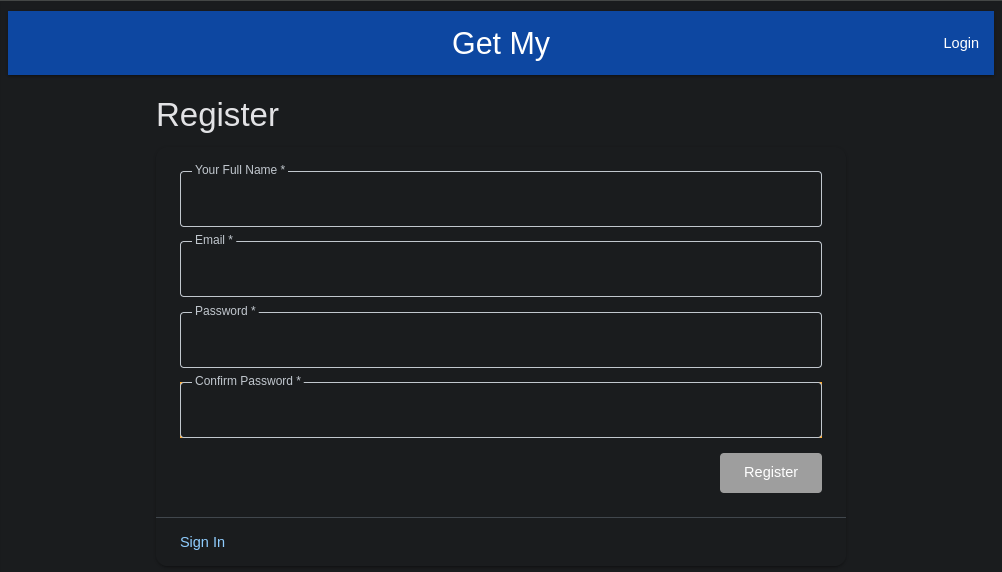
Fill out the form. The email does not have to be a valid email. There is no email validation or notification at this time. Click 'Register' when the form is complete.
You'll be logged in if all information is validated (passwords match, email is in an email format at least).
The first user to register in the Get My application is automatically given the role of 'System Administrator'. This person has full control over the system wide settings, as well as data entered by anyone in the system.
If you mistakenly go to the Registration page, you can return to the Login page by clicking the 'Sign In' link at the bottom left of the registration form.